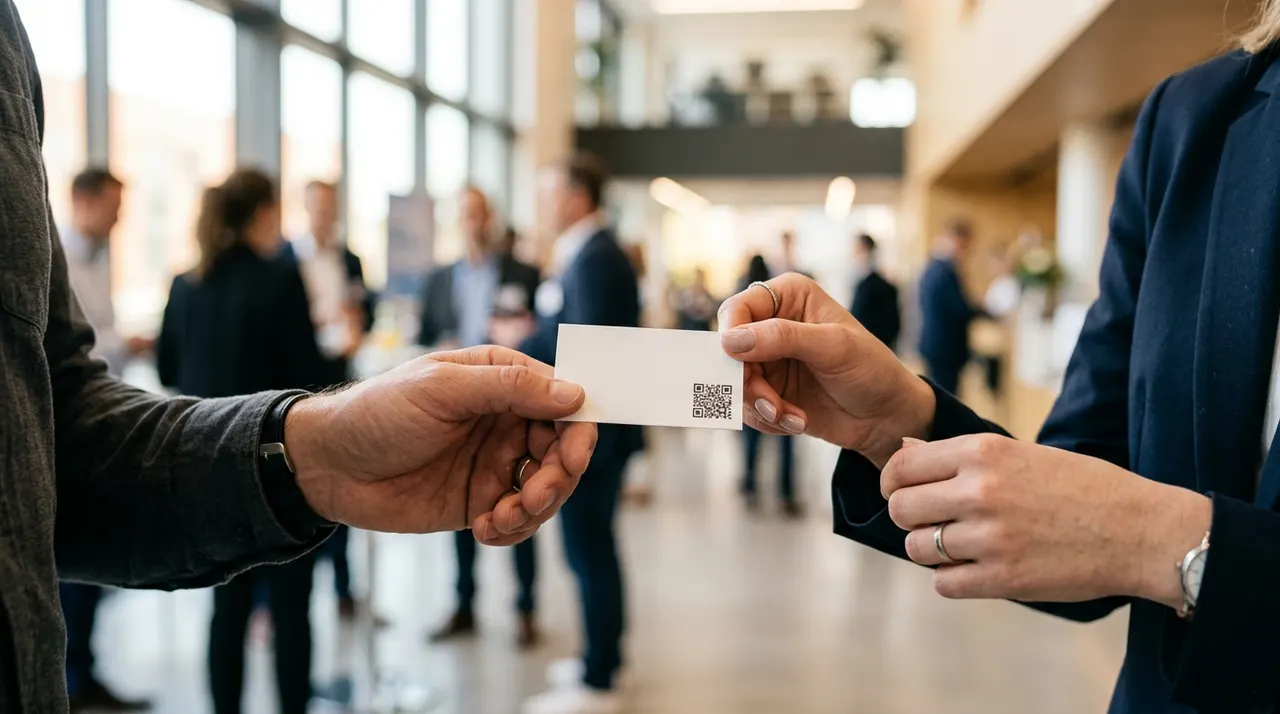
A QR code on a business card can give a recipient a convenient way to import your contact details. Enter the information you want to share in the generator, then test the result before printing. A successful scan is only the first step: the scanner needs to recognise the contact format, and the recipient chooses whether to save it.
What a QR code on a business card does
A direct business-card QR code carries structured contact text called a vCard. This generator emits vCard 3.0 rather than a link to a hosted profile. Compatible apps can interpret that text as contact fields; other scanners may only display the text. Check the workflow on the devices your recipients use.
The text behind the code is plain and readable. It opens with BEGIN:VCARD, then lists each detail on its own labelled line: your full name, your organisation and title, your phone, your email, your website. It closes with END:VCARD. You never write any of that yourself. You type your details into the fields above, the generator builds the vCard, and the code draws itself from it. The other person's phone reads the same block and turns it back into a contact card.
Use dark modules on a light background, keep the clear border and start with a small logo. Error correction does not guarantee a damaged or decorated code will scan. Download PNG, SVG or JPEG. Scan the actual printed size on more than one phone and confirm the destination. SVG stays sharp when resized, but a code can still be too small to read.
Why add a QR code to a business card
Paper cards are not going away, and that is exactly why the code helps. It bridges the gap between the physical card and the digital place where contacts actually live.
- Less manual entry. A compatible import can reduce the need to retype details. It also copies any mistakes in the original record, so confirm the spelling and number first.
- A focused contact record. This form can include your name, title, company, one phone number, email, website and address. More text makes a denser pattern; leave out unnecessary fields.
- A link to your work. Add a website to the contact record, or choose a website QR when opening a portfolio or booking page is the primary task. These are different recipient journeys.
- Cheap to retrofit. You do not need to reprint anything. QR code stickers turn a stack of existing cards into smart cards for the price of a sheet of labels.
- A clear invitation. A labelled code explains what a recipient can do next. Keep a readable phone number or website too, for people who prefer not to scan.
How to create your business card QR code
Start in the generator above, with no account or watermark. Fill in the contact fields you need, checking each against an approved source record. Include only information you intend to distribute publicly. Read the contact-field tutorial for the current phone and address limitations and a checklist for checking the saved record.
Continue to the design step, beginning with a plain, high-contrast code. Download a PNG with enough resolution for its intended use, or an SVG if your layout application and printer accept it. Vector shapes avoid raster pixelation, but even a sharp vector code can be too small for a camera to read.
Then test before you commit to a print run. Scan your own code, confirm the saved contact shows every field correctly, and check that your name is not split oddly or your number is not missing a digit. Once it is right, send the design to print, or order stickers for cards you already have.
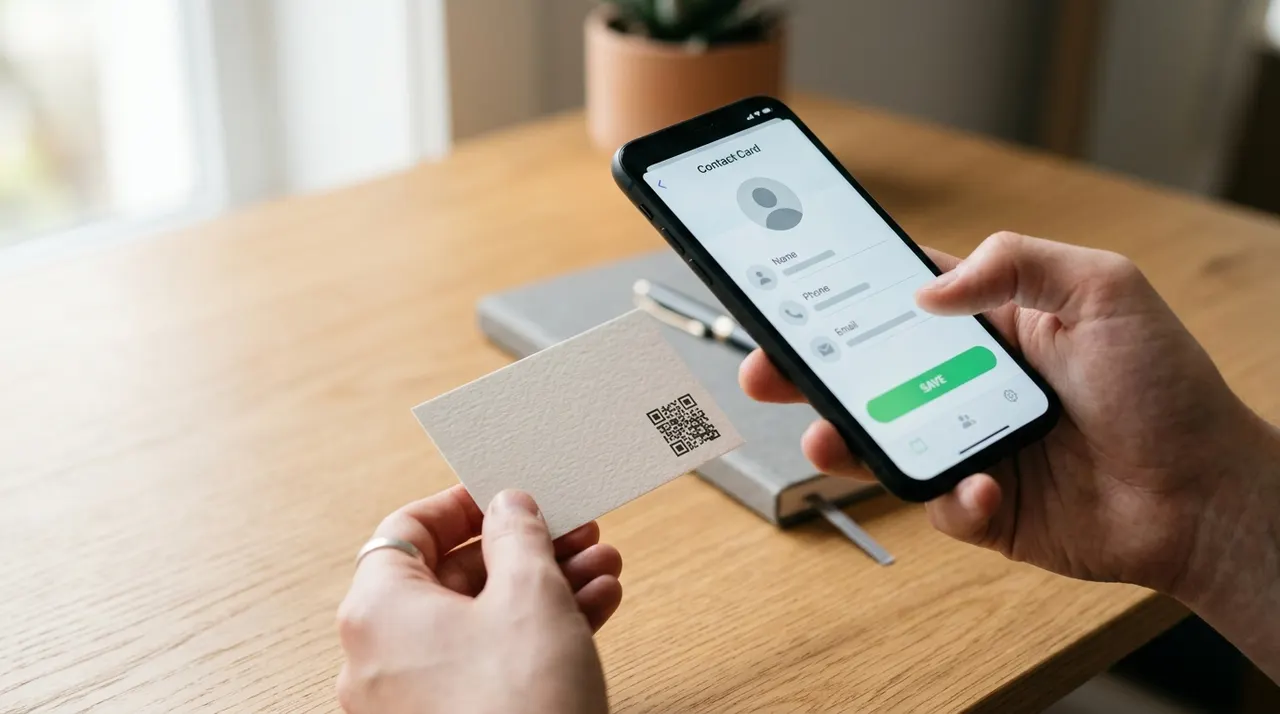
Design and print tips
A code on a business card is small and read up close, so a few habits keep it dependable.
- Give it breathing room. Place the code where it has space around it, ideally the back of the card or a clear corner of the front. Crowding it against text or the edge is the usual cause of a missed scan.
- Keep strong contrast. Dark modules on a light background read fastest. A code printed in a pale brand colour on a dark card looks elegant and scans badly. Test any colour choice before printing.
- Respect the quiet border. The empty margin around the code is what the camera uses to lock on. Designers often trim it to save space, and that is exactly what breaks the scan.
- Test the actual size. There is no guaranteed minimum for every contact record. Use the print-size guide to plan around pattern density, output quality and viewing conditions.
- Add a tiny label. A short prompt like "Scan to save my contact" tells people what they get. Many will not scan a bare square because they cannot tell what it does.
Retrofitting cards you already have
Stickers can update existing cards when there is enough space for the code and its border. Compare the cost and finish with a reprint before ordering. Check adhesion, readability and whether the sticker covers any information people need. The best option depends on the stock and quantity you already have.
A few practical notes when going the sticker route. Pick a matte finish if you can, because glossy stickers throw glare under indoor lighting and glare is a quiet scan killer. Keep the sticker square to the card so the code is not skewed. And as always, scan one finished card before peeling the rest of the sheet, so a mistake costs you one sticker, not forty.
QR code business card vs NFC card
Compare QR and NFC by testing the complete journey with your intended audience. Device support, material costs, destination ownership and update requirements matter more than the interaction looking modern. Check what a supplier actually provides, including any ongoing service dependency.
Use dark modules on a light background, keep the clear border and start with a small logo. Error correction does not guarantee a damaged or decorated code will scan. Download PNG, SVG or JPEG. Scan the actual printed size on more than one phone and confirm the destination. SVG stays sharp when resized, but a code can still be too small to read.
For this generator, the more immediate decision is whether to encode contact text or a URL. The vCard versus website guide compares offline decoding, updates, privacy and measurement. Neither a QR image nor an NFC tag removes the need to maintain a web destination when one is used.
Common mistakes to avoid
Most problems trace back to setup, not to the code itself.
- A typo in your details. Whatever you type is saved into the other person's phone. A wrong digit in your number means they cannot reach you, and you will never know why.
- Empty fields you meant to fill. Forgetting your email or website means it is simply missing from the saved contact. Glance at the preview and confirm everything you want is there.
- Printing before testing. A skewed field or a missing line only shows up on a real scan. Always save the contact on your own phone first, then print in quantity.
- Low contrast or no margin. Pale codes, or codes trimmed to the edge for a tidier layout, are the most common reason a scan stalls in normal light.
- Forgetting after a change. A static code keeps the details you typed. If your number or email changes, reprint or restick, or point the code at a page you can update instead.
Fill in your details above and test both decoding and the saved contact. If the camera cannot read the pattern, use the scanning checklist. If measurement matters, review what QR campaign analytics can record: a direct vCard import does not produce a website visit. For other destinations, browse the QR code types page.
How it works
- 1
Add your content
Fill in the details, then continue to the design preview.
- 2
Choose a readable design
Use dark modules on a light background, keep the clear border and start with a small logo. Error correction does not guarantee a damaged or decorated code will scan.
- 3
Export and test
Download PNG, SVG or JPEG. Scan the actual printed size on more than one phone and confirm the destination. SVG stays sharp when resized, but a code can still be too small to read.
Frequently asked questions
How do I create a QR code for my business card?+
Fill in the details, then continue to the design preview. Use dark modules on a light background, keep the clear border and start with a small logo. Error correction does not guarantee a damaged or decorated code will scan. Download PNG, SVG or JPEG. Scan the actual printed size on more than one phone and confirm the destination. SVG stays sharp when resized, but a code can still be too small to read.
What does the business card QR code actually store?+
It encodes your details in the vCard format, the same standard phones use for contacts. The text starts with BEGIN:VCARD and lists your name, organisation, phone, email, and website on labelled lines before ending with END:VCARD. When someone scans it, the phone reads that block and may offer a contact-import action. Review and saving steps depend on the scanner and contact app; not every app interprets every field identically.
Is the QR code for my business card really free?+
Yes. It is free here with no watermark and no sign-up. Because it is a static code, your contact details are encoded directly into the pattern rather than routed through a server, so there is no service-controlled expiry or monthly fee for decoding it. The image must remain readable, and the encoded contact details can still become outdated.
Can I add a QR code to business cards I already printed?+
Yes. Order QR code stickers and apply one to the back of each existing card if the layout has enough room. Keep the clear border, choose a size suitable for the actual pattern and test a finished card before ordering or applying the full batch. Compare sticker and reprint costs locally.
What should the code link to: my contact details or my website?+
Either can work, depending on your goal. A compatible scanner can offer to import a vCard's contact details. A website code sends people to your portfolio, booking page, or company site. If your card has room, some people add one of each, clearly labelled so the other person knows what they will get.
What happens if my phone number or email changes?+
A static code stores the exact details you typed, so if your number or email changes, the printed code keeps sharing the old one. The fix is to generate a fresh code and reprint, or to order new stickers. If you change details often, a common workaround is to point the code at a web page you control and update that page instead.
How small can I print the QR code on a card?+
There is no size that guarantees every vCard will scan. The amount of encoded text, print quality, contrast and viewing conditions all matter. Preserve the clear border and test a finished proof at its actual size before approving the print run.
Will it work on every phone?+
No universal compatibility is guaranteed. A scanner may read the pattern but display plain text instead of offering contact import. Test the intended workflow on representative phones and include a readable contact method on the card as a fallback.
What exactly does a vCard QR code include?+
This form supports a name, job title, company, one phone number, email, website and one address box. The phone uses a mobile label; the address is not split into separate city, postal-code and country fields. Check the imported contact rather than assuming every app preserves the layout.
Is a QR code business card better than an NFC card?+
Compare the complete user journey, device support, material costs and destination ownership. A QR image needs a compatible scanner and a readable pattern. NFC needs compatible hardware and software. Neither method guarantees contact import on every phone.
Can I track how many people scan my business card QR code?+
A plain static vCard code does not track scans, because the contact data sits inside the code with no server in between. A website destination can record eligible visits, which are not the same as all scans or saved contacts. Maintain any linked page, domain or redirect you rely on.