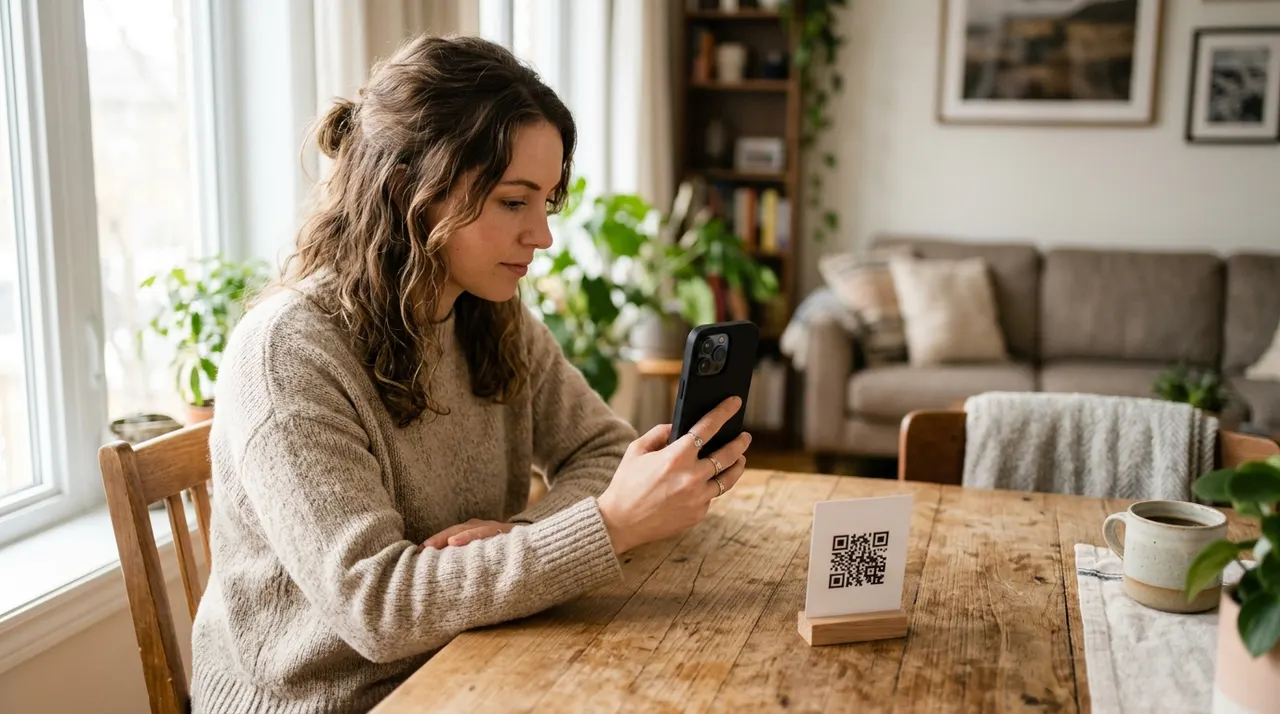
Reading a Wi-Fi password out loud is a small ritual everyone has suffered through. You spell the capital letters, repeat the number that looks like a letter, and the guest still types it wrong twice. A Wi-Fi QR code ends that. Your guest points a phone camera at a printed square, taps one button, and they are online. No spelling, no squinting at a router sticker, no handing your phone around the table.
What a Wi-Fi QR code is and how it works
A Wi-Fi QR code is a printed pattern that carries your network details in a short, structured piece of text. Where a normal QR code holds a web link, this one holds your network name, your password, and the type of security your router uses. When a phone reads it, the operating system recognises the format and offers to join the network with a single tap, filling in the password for the guest automatically.
The exact text behind the code follows a published standard. It looks like WIFI:T:WPA;S:HomeNetwork;P:mypassword123;; where T is the security type, S is the network name, and P is the password. You never have to write that by hand. You type the name and password into the fields above, the generator assembles the string, and the code draws itself from it. The phone on the other end reads that same string and knows precisely what to do.
Use dark modules on a light background, keep the clear border and start with a small logo. Error correction does not guarantee a damaged or decorated code will scan. Download PNG, SVG or JPEG. Scan the actual printed size on more than one phone and confirm the destination. SVG stays sharp when resized, but a code can still be too small to read.
Where a Wi-Fi QR code earns its keep
The format suits any place where people who are not you need to get online quickly.
- Homes and guest rooms. A small card on the nightstand or the fridge means visitors connect themselves without interrupting you. Holiday guests, babysitters, and relatives all skip the password recital.
- Vacation rentals and Airbnbs. A laminated card in the welcome folder is one of the most appreciated touches a host can add. Guests arrive tired, and one scan beats hunting for a password buried in a check-in email.
- Cafes, bars, and restaurants. A code on the table or by the counter lets customers connect while you keep serving. It also keeps staff from repeating the same password a hundred times a shift.
- Offices and meeting rooms. A guest-network code on a reception card or a meeting-room wall gets visitors and contractors online without IT involvement and without exposing the main network.
- Events and pop-ups. A printed code at a market stall, conference booth, or workshop venue puts everyone on the network in seconds, even with a crowd waiting.
How to create your Wi-Fi QR code
Everything happens in the generator at the top of this page, with no account and no watermark. Start with the network name, also called the SSID. Type it exactly as it shows in your phone's list of networks, because capitalisation and spaces matter: Home Wifi and home wifi are two different names to a phone.
Next, enter the password and choose the security type. Almost every home and small-business router uses WPA or WPA2, so that is the safe default. If your network is genuinely open with no password, pick the open option and leave the password field blank. Continue to the design step to preview the code and choose its appearance.
The step people skip is the one that matters most: test the code before you print a stack of cards. Forget the network on a second phone, scan the code, and confirm it actually connects rather than just showing the network name. Once it works, download a PNG for digital use or an SVG for print. SVG is vector based, so it prints crisp on anything from a tiny table tent to a large wall sign.
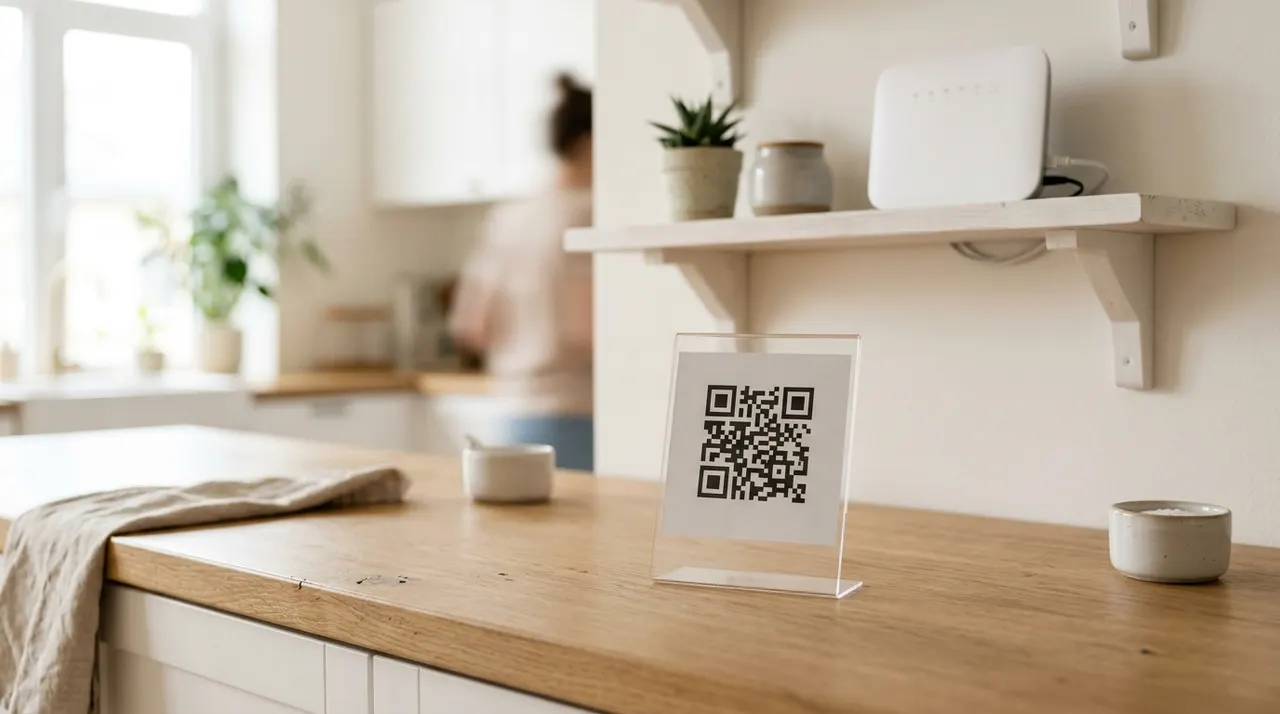
Design and print tips
A Wi-Fi code is usually small and read up close, but a few habits keep the scan reliable.
- Keep strong contrast. Dark modules on a light background read fastest. Avoid placing the code over a photo or a patterned background, which is where most failed scans happen.
- Leave the quiet border. The empty margin around the code is what the camera uses to lock on. Trim it away and scanning gets flaky, especially under dim cafe lighting.
- Size it for the distance. A card someone holds needs only about 3 cm (1.2 inches) square. A code on a wall that people scan from across a room wants 10 cm (4 inches) or more.
- Add a short label. A line like "Scan to join the Wi-Fi" tells people what the code is for. Without it, plenty of visitors will not realise the square connects them to the internet.
- Protect it from wear. In kitchens, bars, and rentals, laminate the card or use a sticker with a matte finish. Glare from a glossy surface is a common, quiet reason scans stall.
Recommended print size by use
As a quick guide, match the printed size of the code to where it lives and how far away people scan it from.
| Placement | Recommended code size | Typical scan distance |
|---|---|---|
| Table card or guest-room card | 2 to 3 cm | 10 to 20 cm |
| A5 counter or desk sign | about 4 cm | 20 to 40 cm |
| A4 poster on a wall | 5 to 6 cm | 0.5 to 1 m |
| A3 or larger wall sign | 10 cm or more | 1 to 3 m |
The pattern is simple: the wider you print the code, the further away it scans cleanly, so a window sign should always be larger than a card you hold in your hand.
A note on security
A Wi-Fi QR code is convenient, and convenience and security pull against each other a little. Anyone who can see the printed code can scan it and read the password, so think about where it lives. On a guest-room card, behind a counter, or in a check-in folder, that is exactly the point. Taped to a window facing the pavement, less so.
For homes and rentals, a sensible pattern is a separate guest network. Many routers let you run a second network that reaches the internet but not your printer, your files, or your smart-home devices. Put the QR code on the guest network and you get the easy scan-to-connect experience without handing visitors the keys to everything else on your Wi-Fi.
Common mistakes to avoid
Most problems come from the details, not the code.
- A typo in the network name. The SSID has to match exactly. One wrong capital and the phone joins, or tries to join, the wrong network. Copy it straight from your phone's network list.
- Wrong security type. Choosing open for a password-protected network, or the reverse, makes the join fail. Match what your router actually uses, which is WPA or WPA2 for nearly all home gear.
- Printing before testing. A password typo only surfaces when someone scans. Always run one live connection test on a phone that is not already on the network, then print.
- Forgetting after a password change. The code stores the exact password you typed. Rotate the password and the old code goes dead, so reprint whenever you change it.
- Low contrast or no margin. Pale codes, or codes cropped to the edge, are the usual reason a scan stalls in real lighting.
Type your network name and password into the generator above, run one test scan, and download in SVG for clean printing. The next guest who walks in connects in seconds, and you never have to spell out that password again. Want a different kind of code for a contact card or a menu instead? Start from the home page or browse every option on the QR code types page.
How it works
- 1
Add your content
Fill in the details, then continue to the design preview.
- 2
Choose a readable design
Use dark modules on a light background, keep the clear border and start with a small logo. Error correction does not guarantee a damaged or decorated code will scan.
- 3
Export and test
Download PNG, SVG or JPEG. Scan the actual printed size on more than one phone and confirm the destination. SVG stays sharp when resized, but a code can still be too small to read.
Frequently asked questions
How do I make a Wi-Fi QR code?+
Fill in the details, then continue to the design preview. Use dark modules on a light background, keep the clear border and start with a small logo. Error correction does not guarantee a damaged or decorated code will scan. Download PNG, SVG or JPEG. Scan the actual printed size on more than one phone and confirm the destination. SVG stays sharp when resized, but a code can still be too small to read.
What information does the Wi-Fi QR code actually store?+
It encodes a short text string in a standard format that phones recognise, written as WIFI:T:WPA;S:YourNetworkName;P:YourPassword;; where T is the security type, S is the network name, and P is the password. The phone reads that string and offers to join automatically. The code holds your credentials directly, which is why it works offline and never expires.
Is the Wi-Fi QR code free, and does it expire?+
It is completely free here, with no sign-up and no watermark. Because it is a static code, your network details are baked straight into the black and white pattern rather than routed through a server, so it never expires and there is no monthly fee. It keeps working as long as your password stays the same.
Is it safe to put my Wi-Fi password into a QR code?+
The code is generated in your browser, so your password is not stored on a server here. Anyone who can scan the printed code can read the password, so treat the printout the way you would treat the password itself: fine on a guest-room card or behind the counter, less ideal taped to a front window facing the street.
Do guests need to download an app to scan it?+
No. iPhones running iOS 11 or newer read the code straight from the native camera and show a join button. Most modern Android phones do the same through the camera app or Google Lens. On older handsets, a free QR reader from the app store handles it the same way.
What if I change my Wi-Fi password later?+
A static code stores the exact password you typed, so if you change the password the old code stops connecting. The fix is to generate a fresh code with the new details and reprint it. Many cafes and rentals keep a small laminated card so reprinting takes a minute when the password rotates.
Does the code work for hidden networks?+
Yes, but you may need to mark the network as hidden so the phone knows to search for an SSID that is not broadcasting. If your generator has a hidden-network option, switch it on. Otherwise a hidden network can still connect, though some phones prompt for an extra confirmation.
Will it work on both iPhone and Android?+
Yes. The Wi-Fi QR format is a recognised standard, so iOS and Android both read it from the camera and offer to join. The only difference is small wording on the join prompt. Older phones without native support can use any free QR app to read the same code.
How big should I print the Wi-Fi QR code?+
Size it for the scanning distance. A small card guests hold needs only about 2 to 3 cm (roughly 1 inch) square, while an A4 poster on a wall that people scan from a few feet away wants 5 to 6 cm or more. As a rule, the code should be about one tenth of the distance from which it will be scanned, so a code read from 50 cm needs to be around 5 cm wide.
Should I download the Wi-Fi QR code as PNG, SVG, or JPEG?+
Choose SVG for anything you print, because it is a vector and stays razor sharp at any size, from a tiny table card to a large sign. Pick PNG for screens, slides, or websites where you want a crisp image with a transparent background. Avoid JPEG for QR codes, since its compression adds faint blur around the modules that can make scanning less reliable.
Can I add my logo or change the colour of the Wi-Fi QR code?+
Use dark modules on a light background, keep the clear border and start with a small logo. Error correction does not guarantee a damaged or decorated code will scan. Download PNG, SVG or JPEG. Scan the actual printed size on more than one phone and confirm the destination. SVG stays sharp when resized, but a code can still be too small to read.