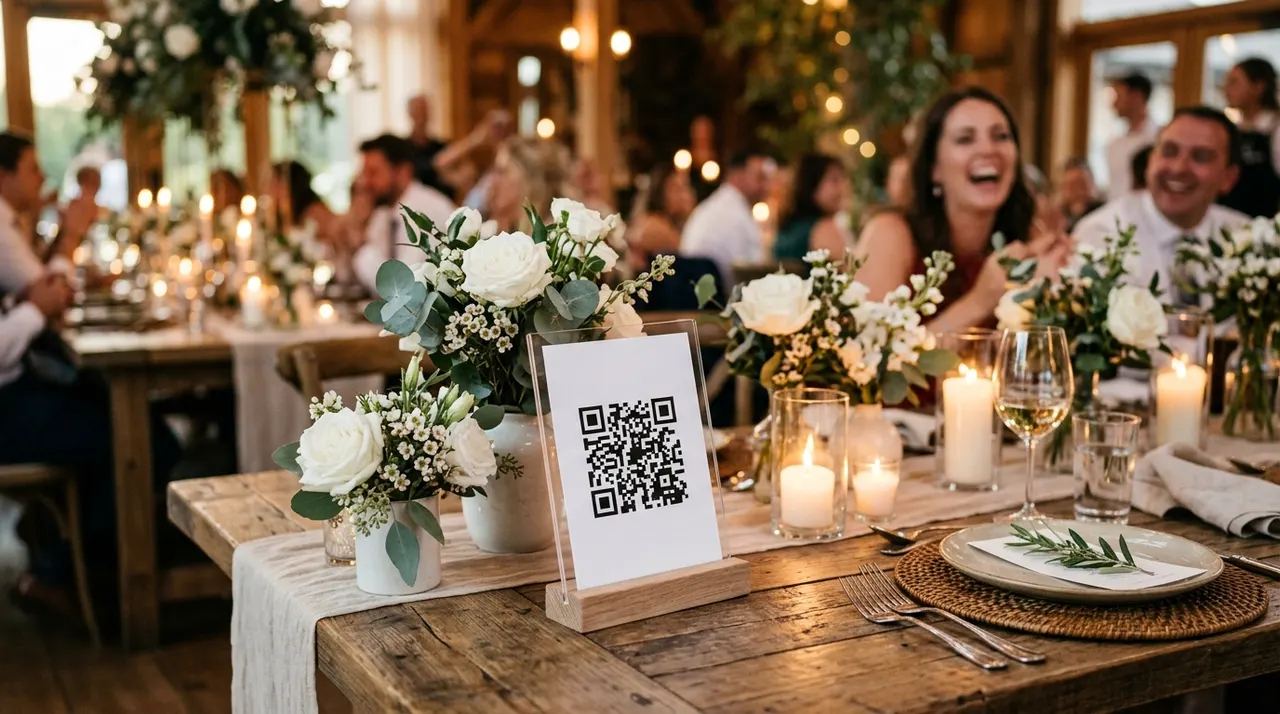
The official photographer captures the posed, polished moments. Your guests capture everything else: the dance floor at midnight, the toast that made everyone cry, the flower girl asleep under a table. A QR code for wedding pictures pulls all of those candid shots into one shared album, so nothing stays trapped on a hundred different phones. Guests scan, the album opens, and they upload. That is the whole flow.
What a wedding QR code is and how it works
A wedding QR code is a small printed pattern that holds one thing: a web address. When a guest points a phone camera at it, the phone reads that address and opens it, exactly as if they had typed the link by hand. For a photo album, the link points at a shared gallery where guests can drop their own pictures. There is no app to install for the couple, and the photos never live inside the code itself. The code is simply a faster way to hand someone a link.
That link can lead anywhere you choose, which is why one generator covers the whole wedding. Point it at a shared photo album and you have a place for guest snapshots. Point it at your RSVP form and people reply with one scan. Point it at your wedding website and guests find directions, the timeline, and the registry in seconds.
Use dark modules on a light background, keep the clear border and start with a small logo. Error correction does not guarantee a damaged or decorated code will scan. Download PNG, SVG or JPEG. Scan the actual printed size on more than one phone and confirm the destination. SVG stays sharp when resized, but a code can still be too small to read.
Where couples use a wedding QR code
The photo album is the headline use, but the same idea solves several jobs across the celebration.
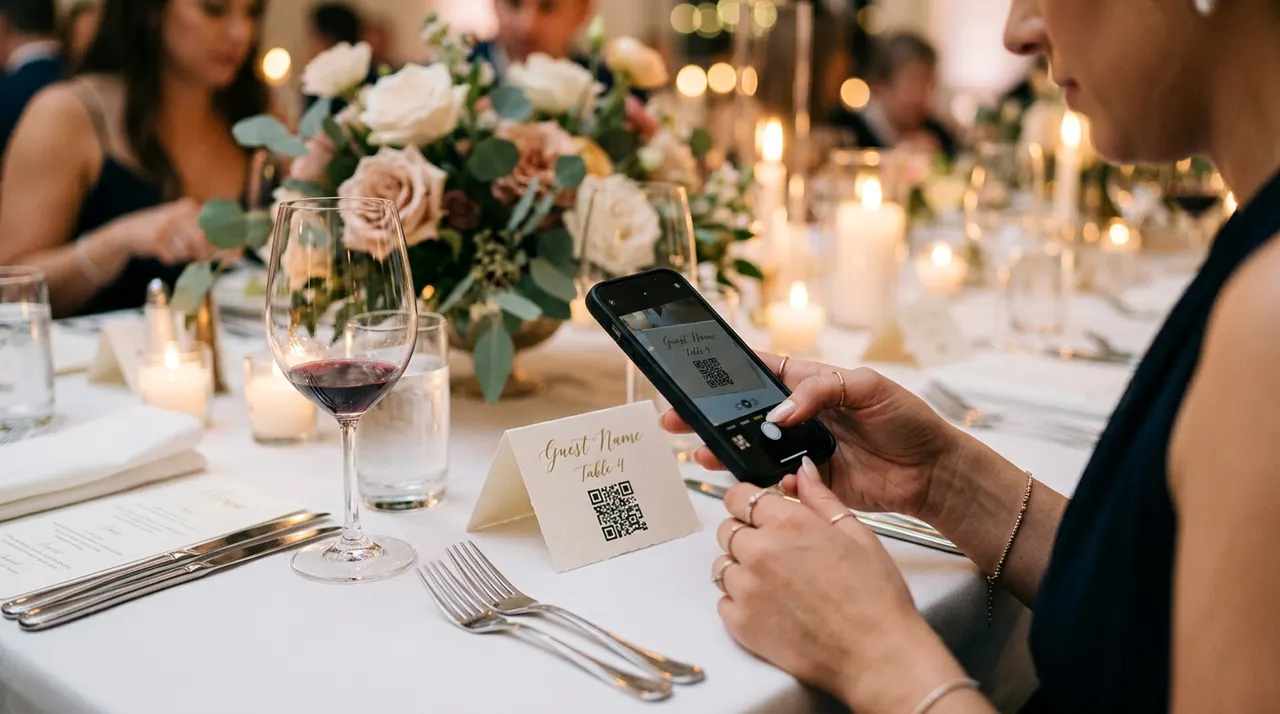
- Guest photo album. The classic reason couples want a QR code for wedding guests to upload photos. One code on every table sends each scan to the same gallery, so the morning after the wedding you wake up to hundreds of pictures you never would have seen.
- Wedding website. A QR code for your wedding website puts the schedule, venue map, dress code, and registry one scan away. Print it on the back of the invitation so guests reach everything without typing a long address.
- RSVP form. A QR code for wedding RSVP links straight to your reply form. Older guests who dread online forms often manage a single scan far more easily than a typed URL.
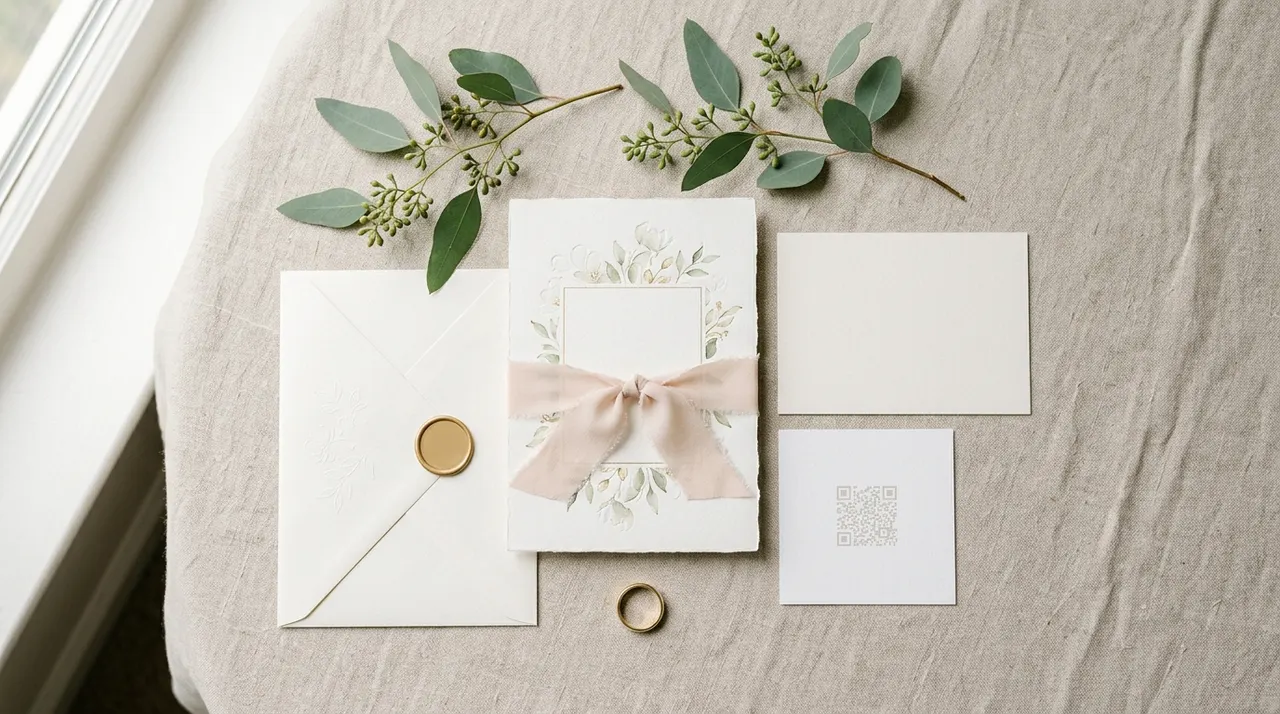
- Invitations and save-the-dates. A small code in the corner of a printed invitation connects paper to the web cleanly, without crowding the design with a long link.
- Signage and the welcome table. A larger code on an easel sign greets guests as they arrive: scan here to share your photos, scan here to find your seat.
How to create your wedding QR code
Everything happens in the generator at the top of this page, with no sign-up and no watermark. First, set up the destination. For photos, create a shared album in Google Photos, an iCloud Shared Album, or a wedding photo app, and switch on the option that lets guests contribute their own pictures. Copy that share link. For an RSVP or website, copy that page's address instead.
Paste the link into the field above, then continue to the design step to preview and customise the code before downloading. The most important step is the one people skip: scan your own code with your phone before printing. Confirm it opens the correct album and that you can actually add a photo. Once it works, download a PNG for screens or an SVG for print. SVG is vector based, so it stays crisp whether you print it on a place card or a large entrance banner.
Design and print tips
A wedding QR code becomes part of the décor, so it should look intentional and still scan on the first try.
- Keep strong contrast. Dark modules on a light background read fastest. Pale code on a busy floral pattern is where most scans fail, so give the code a clean panel of its own.
- Leave the quiet border. The empty margin around the code is what the camera uses to lock on. Crop it away and scanning gets unreliable, especially in dim reception lighting.
- Size it for the distance. A table card guests hold needs only about 3 cm (1.2 inches) square. A welcome sign scanned from a step away wants 10 cm (4 inches) or more. When in doubt, print it larger.
- Add one line of instruction. A short label like "Scan to share your photos" tells guests what the code does. Without it, many people will not scan at all because they do not know what they will get.
- Place it where eyes already land. On a table card, near the centre. On a sign, at roughly chest height. On an invitation, a corner where it does not fight the typography.
Choosing where the photos collect
The QR code is only as good as the album behind it, so pick the destination with your guests in mind. Three options cover almost everyone.
- Google Photos shared album. Free, opens in the browser, and lets anyone with the link add pictures without a Google account on most setups. A safe default for a mixed guest list.
- iCloud Shared Album. Natural for Apple-heavy crowds, though guests on Android may need a browser link rather than the native app. Worth a quick test with a non-Apple phone before the day.
- A dedicated wedding photo app. Services built for weddings often add a live slideshow, video support, and easy downloads afterward. The trade-off is that some ask guests to install an app, so favour one that allows browser uploads so nobody is shut out.
Whatever you choose, set the album to accept guest contributions, generate the code from that link, and confirm an upload works from a phone that is not yours. That single check is what separates a wall of guest photos from an empty gallery.
What a wedding QR code can link to
One generator covers the whole wedding, because the code simply opens whatever single web address you give it. The table below shows the most popular destinations and what each one does for guests.
| Destination | One-line use |
|---|---|
| Shared photo album | Guests scan and upload their candid photos to one gallery |
| RSVP form | Guests reply to the invitation with a single scan, no typed URL |
| Wedding website | Opens the schedule, venue map, dress code, and registry in seconds |
| Music playlist | Guests add song requests to a shared Spotify or Apple Music list |
| Registry page | Sends guests straight to your gift list without a long link |
Pick the one job that matters most for each placement, label the code clearly, and you turn a small printed square into the fastest way to connect guests to the right page.
Common mistakes to avoid
Most failures trace back to the setup, not the code itself.
- Forgetting to allow uploads. A shared album set to view-only lets guests look but not add. Turn on guest contributions before you generate the code, then test it with a photo from your own phone.
- Printing before testing. A typo in the link or a private album setting only shows up when someone scans. Always run a live scan first, then print in quantity.
- A link that will change. Static codes point at one fixed address. If you swap the album later, the printed code goes stale. Lock in a stable link early and keep adding to that same album.
- Low contrast or no margin. Pretty but pale codes, or codes trimmed right to the edge, are the usual reason a scan stalls under reception lighting.
- No instructions. Guests will not scan a bare square. One short prompt turns a mystery code into an obvious action.
Set up your album, paste the link into the generator above, run one test scan, and download in SVG for clean printing. By the end of the night, every guest photo will be sitting in one place, ready to relive long after the cake is gone. Need a different style of code for the RSVP or website instead? Start from the home page or browse the full list of QR code types to pick the right one.
How it works
- 1
Add your content
Fill in the details, then continue to the design preview.
- 2
Choose a readable design
Use dark modules on a light background, keep the clear border and start with a small logo. Error correction does not guarantee a damaged or decorated code will scan.
- 3
Export and test
Download PNG, SVG or JPEG. Scan the actual printed size on more than one phone and confirm the destination. SVG stays sharp when resized, but a code can still be too small to read.
Frequently asked questions
How do I make a QR code for wedding pictures?+
Fill in the details, then continue to the design preview. Use dark modules on a light background, keep the clear border and start with a small logo. Error correction does not guarantee a damaged or decorated code will scan. Download PNG, SVG or JPEG. Scan the actual printed size on more than one phone and confirm the destination. SVG stays sharp when resized, but a code can still be too small to read.
Where do the photos actually go when a guest scans the code?+
The QR code only stores the web address of your album, nothing more. Scanning it opens that link in the guest's browser or photo app, and any picture they add lands directly in your shared album. The code itself never holds the photos, so the album is the single place everything collects.
Can the same QR code handle RSVPs and the wedding website too?+
Yes. The code encodes whatever single URL you give it, so you can point it at your RSVP form, your wedding website, or your photo album. Many couples make two codes: one for the website and RSVP before the day, and one for the photo album on the day itself.
Is the wedding QR code really free, with no expiry?+
The code is completely free here, with no watermark and no sign-up. Because it is a static code, the link is baked straight into the design, so it never expires and there is no monthly fee. It keeps working as long as the album or website behind the link stays online.
What if I need to change the album link after printing?+
A static code points at one fixed address, so changing the destination means generating a new code. The simple fix is to set up your album link first and test it, then print. If you expect the address to change, keep your shared album link stable and only update the contents inside it, not the link.
Will guests need to download an app to upload their photos?+
Usually not. Google Photos and iCloud Shared Albums open in the browser or the phone's built-in photo app, and most guests can add pictures with a tap. If you choose a dedicated wedding photo service, check whether it asks for an app, and pick one that allows browser uploads so older guests are not left out.
How big should I print the QR code on a table card?+
For a card guests hold or read from across a small table, about 3 cm (1.2 inches) square is comfortable. For a welcome sign people scan from a step or two away, scale up to 10 cm (4 inches) or more. Keep strong contrast, dark code on a light background, and leave a clear margin around it.
Does it work on both iPhone and Android?+
Yes. iPhones running iOS 11 or newer read the code straight from the native camera. Most Android phones read it through the camera app or Google Lens. On older handsets, any free QR reader from the app store opens the link the same way.
What can a wedding QR code link to?+
A wedding QR code can point at any single web address, so couples use it for a shared photo album, an RSVP form, the wedding website, a music playlist for song requests, or a registry page. The album is the most popular use, since one code on every table funnels every guest's candid photos into one gallery. Many couples make two codes, one for the website and RSVP before the day and one for the photo album on the day itself.
Can guests request songs through a wedding QR code?+
Yes. Point the code at a shared playlist on Spotify or Apple Music, or at a simple song-request form, and guests can add tracks from their seats. This is a fun way to crowdsource the dance floor without the DJ taking requests by hand all night. Test the link first so anyone with a phone, not just users of one music service, can add a song.
How early should I set up and print the wedding QR codes?+
Set up the destination links a few weeks before the day and print only after a real scan test. For RSVP and the wedding website, that means well ahead of when invitations go out. For the photo album, lock the share link in early, confirm an upload works from a phone that is not yours, then print your table cards and signs.
Will old or printed photos fit in the same shared album?+
Yes. Because the QR code only opens the album link, you and your guests can keep adding photos and short videos to that same gallery long after the wedding. Many couples leave the album open for a few weeks so people upload the shots they took on the night once they get home. The code on a saved table card keeps working as long as the album stays online.